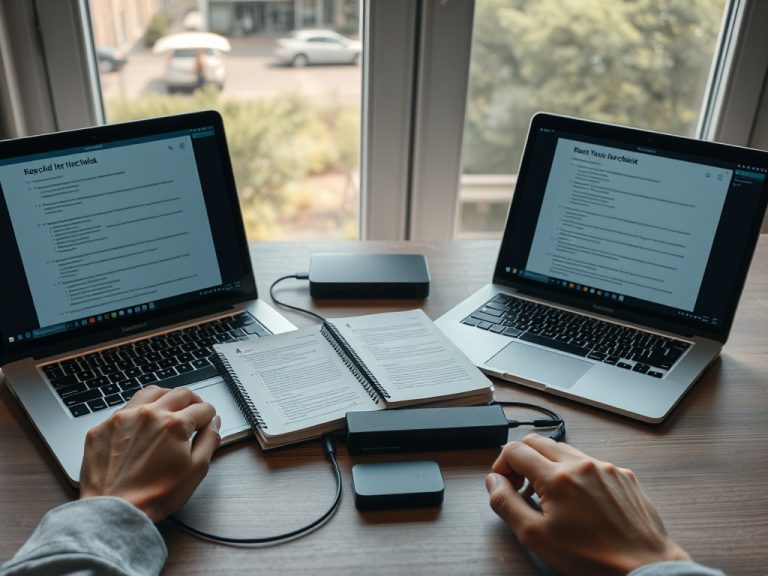
Time Machine vs Cloud Backup: Which Option Makes More Sense for missing essential mac settings?
Time Machine and cloud backup solve different problems. Time Machine is best for fast local Mac restores and version history, while cloud backup is better for off-site protection when a drive is lost, stolen, or damaged.
Backup Match in One Minute
TL;DR: Use Time Machine for quick local recovery and a separate cloud backup for disaster protection when possible. The weak choice is not Time Machine or cloud; it is having only one fragile copy of files and settings.
- Time Machine is built into macOS and works with a local or network storage destination.
- Cloud backup protects against local damage, theft, and drive failure, but recovery may depend on bandwidth and service limits.
- iCloud Drive is file sync, not a full Time Machine replacement.
- Essential Mac settings should be documented as well as backed up.
What Time Machine Does Well
Apple describes Time Machine as the built-in Mac feature that can automatically back up files including apps, music, photos, email, and documents when you use a compatible storage device. The verified point is that Time Machine is a local backup system built into macOS. The practical interpretation is that it is especially useful when you need to restore a file, migrate to another Mac, or recover after a local mistake.
Time Machine is also friendly for non-technical users. Once configured, it runs in the background when the destination is available. That makes it a strong first layer for people who otherwise forget backups.
Where Time Machine Falls Short
A Time Machine drive sitting next to the Mac can fail, be stolen, or be damaged in the same incident. If the drive is not connected often, backups may be out of date. If the drive is too small, older versions disappear sooner. If you never test recovery, you may not know whether the backup includes what you expect.
This matters when people talk about missing essential Mac settings. Some preferences, app states, and account details may not behave like simple documents. A backup helps, but it is still wise to keep a short setup note listing key apps, license details, email settings, security keys, printer settings, and cloud folders.
What Cloud Backup Does Well
Cloud backup adds geographic separation. If your laptop bag and desk drive are gone, an off-site copy can still exist. A good cloud backup service can also run automatically, keep versions, and restore selected files from another location.
Cloud backup's trade-off is recovery speed. Large restores can take time because data must download. Some services also have device limits, retention rules, excluded folders, or special steps for external drives. Read the policy before assuming everything is protected.
Sync Is Not the Same as Backup
Cloud sync tools keep files available across devices, but sync can spread mistakes. If you delete a synced file, that deletion may sync too. Some tools offer version history or trash recovery, but that is not identical to a full system backup.

This distinction matters for Mac users relying on iCloud Drive, Dropbox, Google Drive, or OneDrive. Sync is useful for access. Backup is useful for recovery. A resilient setup may use both, but each has a different job.
Time Machine vs Cloud Backup Comparison
| Factor | Time Machine | Cloud backup |
|---|---|---|
| Best use | Fast local Mac recovery | Off-site protection and remote recovery |
| Restore speed | Usually fast from local storage | Depends on internet speed and data size |
| Disaster protection | Weak if stored near the Mac | Stronger if service is reliable |
| Setup difficulty | Low for most Mac users | Varies by service and folders selected |
| Cost pattern | Drive purchase, possible replacement | Subscription or storage plan |
| Version history | Built into Time Machine behavior | Depends on provider rules |
| Essential settings | Helpful for migration and restore | May require app-specific support |
Match the Choice to Your Workflow
Use Time Machine if you want the simplest Mac-native way to recover from accidental deletion, failed updates, or device replacement. Use cloud backup if your files would be painful to lose in a theft, fire, flood, or drive failure. Use both if the Mac holds work, family records, creative files, or business documents.
For people comparing device choices, the laptop setup checklist is a useful companion because backup planning should happen before a new machine becomes the only home for important files. If malware or risky downloads are part of your concern, the malware mistakes guide explains why backups should be protected from infected devices and suspicious installers.
Do Not Forget the Settings Layer
Missing settings can slow recovery even when documents are safe. Keep a simple text note or secure password-manager note with your setup checklist. Include installed apps, browser profiles, email accounts, VPN details, printer names, cloud folders, accessibility settings, keyboard shortcuts, and backup destinations. Do not store passwords in plain text.
This note is not a replacement for backup. It is a recovery map. When a restore fails to bring back a small preference, the map saves you from rebuilding everything from memory.
A Practical Backup Pattern
A balanced Mac setup often looks like this: Time Machine to a dedicated drive, cloud backup for critical user files, cloud sync for active documents that must move between devices, and a written recovery checklist for settings. Keep at least one backup protected from the same physical risks as the Mac.
Test recovery quarterly. Restore one harmless file, check backup dates, and confirm the cloud service still includes the folders you care about. A backup you never test is only a hope.
Choose a Backup Setup You Can Actually Maintain
The best backup method is the one you will keep using. If a manual drive routine fails because you forget it, add automation. If cloud costs make you avoid protecting large files, use local backup for the full system and cloud backup for irreplaceable folders.
Start with Time Machine if you have no backup today. Add cloud protection for files that would hurt most to lose. Then document essential settings so recovery is not just possible, but calm.
Run a Small Recovery Drill
Once the backup plan is in place, test it with a harmless file and one settings note. Restore the file, confirm the date of the latest backup, and check that the recovery steps make sense without your memory filling in the gaps. This small drill exposes missing folders, disconnected drives, expired subscriptions, and confusing restore screens before a real emergency.